Mar 16, 2026
Pdf in a web page: Quick Guide to Embedding PDFs
Master how to embed pdf in a web page with easy steps: iframes, PDF.js, and no-code options for Bubble.
When you need to show a PDF in a web page, your first instinct might be to just link to the file. But forcing visitors to download a document is a surefire way to interrupt their experience and send them away from your site. A much better approach is to embed it directly, keeping everything in one place.
It’s all about creating a smooth, professional journey for your users.
Why Seamless PDF Integration Matters
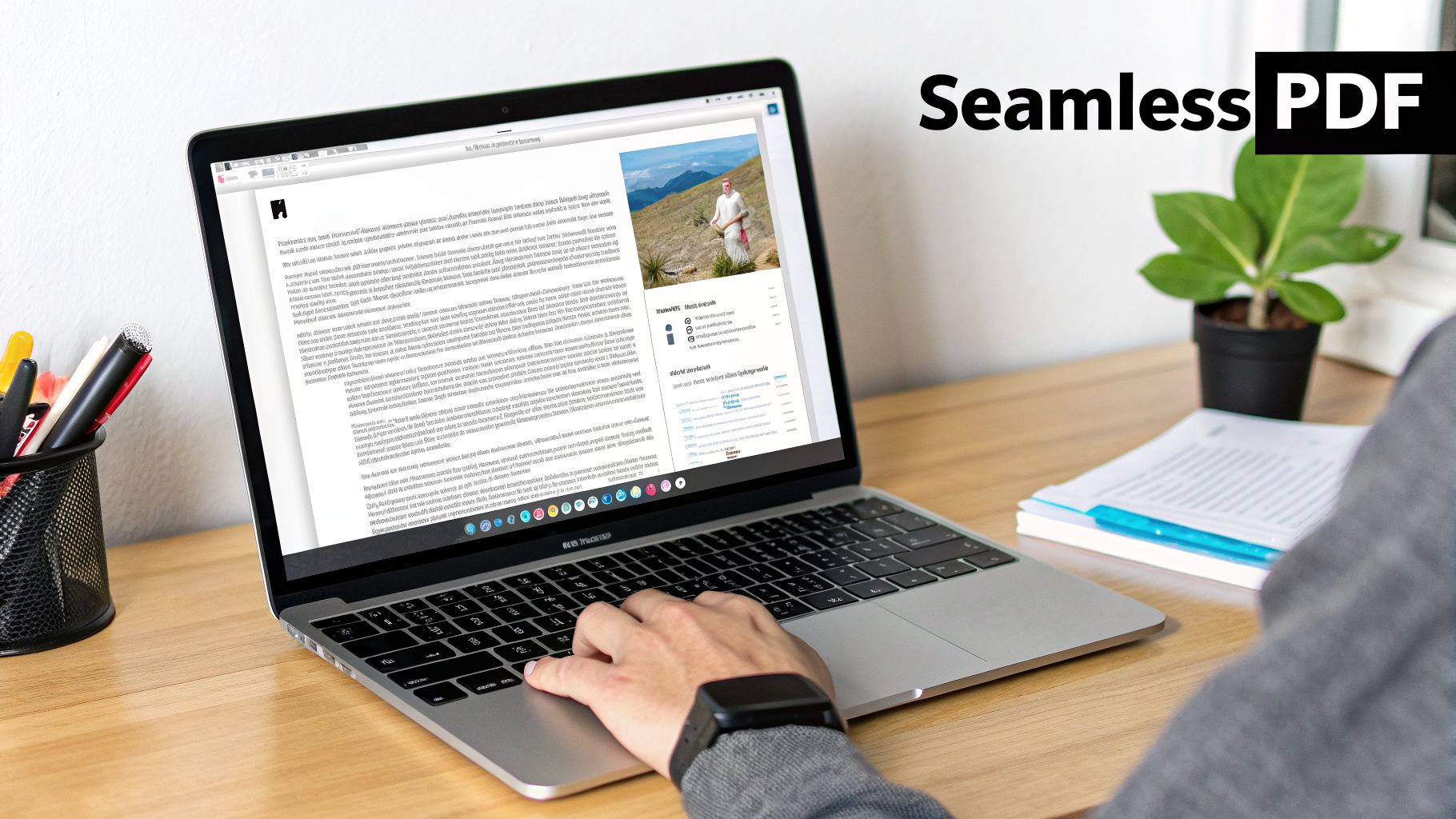
Think about it from your user's perspective. Clicking a link and having a file unexpectedly download feels clunky and outdated. It yanks them out of the experience you've carefully built. By embedding the PDF right on the page, you keep them engaged and prevent the jarring interruption of a new tab or a download prompt.
This isn't just a minor design choice; it directly impacts how people perceive your business. When someone can view a report, portfolio, or manual without ever leaving your page, it signals a polished, thoughtful approach to how you present information.
Boost User Engagement and Trust
Every time a user has to leave your site to view a document, you risk losing their attention for good. A direct download often feels like a dead end. By keeping the PDF experience contained within your website, you maintain control over their journey and can guide them to their next step.
Keeping users within your ecosystem is a core principle of good design. It reduces friction, improves session duration, and ultimately builds a stronger connection between the user and your brand.
I've seen this make a huge difference in so many real-world scenarios:
Client Reports: Instead of emailing attachments, you can deliver data-rich reports directly within a secure client portal for a truly professional touch.
Product Manuals: Let customers browse instructions right on the product page, rather than making them hunt for a file they just downloaded.
Lead Magnets: Give visitors a sneak peek of your ebook or guide on the landing page itself before asking for their email.
Portfolios: Showcase your case studies or design work without forcing potential clients to open a separate application or tab.
The Growing Importance of Document Management
This isn't just about looking good—it's about staying current. The global PDF solutions market is a massive part of modern digital operations, valued at $8.81 billion in 2025 and growing fast. This trend underscores a clear business need for secure and efficient ways to handle documents online.
For no-code creators, especially those building on a platform like Bubble.io, learning how to display a PDF in a web page is a crucial skill. It can elevate your project from a simple website into a genuinely useful, feature-rich application. Of course, once your app is live and working beautifully, you'll need a solid plan for getting it in front of the right people, which you can read all about in our guide on how to market a website.
Getting Started With Simple HTML Embeds
Let's start with the easiest route. You don't need to be a coding wizard to get a PDF in a web page. The most direct methods just use a few simple HTML tags. These are the classic, battle-tested approaches that offer a no-fuss way to display your file.
For anyone working with no-code tools, this is a huge time-saver. In a platform like Bubble, you can just drag an HTML element onto your page and paste in a short code snippet. If you connect the code to a dynamic file URL from your database, you can have a functional PDF viewer up and running in minutes. This is perfect for quick prototypes or internal dashboards. If you're new to the space, our guide on no-code app development can give you a solid footing.
The Iframe Tag: Your Go-To Embed Tool
The <iframe> tag is the real workhorse for this kind of job. It basically carves out a small window on your website to display another document—in this case, your PDF. It's the most widely supported and reliable tag for the task.
Think of it this way: a restaurant owner could use an <iframe> to embed their menu PDF directly on their site. Whenever they update the menu, they just upload the new file. No code changes needed.
Here’s what a standard <iframe> looks like in the wild, as documented by MDN Web Docs.
This snippet shows how the iframe creates its own self-contained browsing space right inside your main page.
What About Embed and Object Tags?
While <iframe> is the modern standard, you'll still see the <embed> and <object> tags floating around. The <embed> tag is incredibly simple for inserting external content, but it gives you very little control and has been on the verge of deprecation for years.
The <object> tag is a bit more flexible. It was originally designed to handle all sorts of media types and even lets you specify fallback content if a browser can't load the PDF.
Key Takeaway: While
<embed>and<object>have their uses, the<iframe>tag is almost always the most reliable and modern choice for basic PDF embedding. It hits the sweet spot between functionality and browser compatibility.
There's a catch with all these simple methods, though. They all hand off the rendering job to whatever PDF viewer is built into the user's browser. This means the toolbar for zooming, printing, or downloading will look completely different on Chrome, Firefox, and Safari. You get zero control over that user experience.
No matter which tag you choose, the goal is to give users a way to view PDF documents without leaving your site. Simple HTML gets you there fast, but it comes with trade-offs in control and mobile-friendliness, which we’ll get into next.
Choosing the Right Method for Your Project
So, after all that, which method should you actually use? I get this question a lot, and the honest answer is: it depends entirely on your project. The right approach hinges on your goals, your comfort with a bit of code, and the kind of experience you want to give your users.
What works for a quick-and-dirty internal tool is a terrible choice for a polished, public-facing website. Making the right decision now saves you a massive headache later on.
To help you navigate this, think of it like a fork in the road. Your first decision—whether you need a simple display or advanced control—will point you in the right direction from the start.
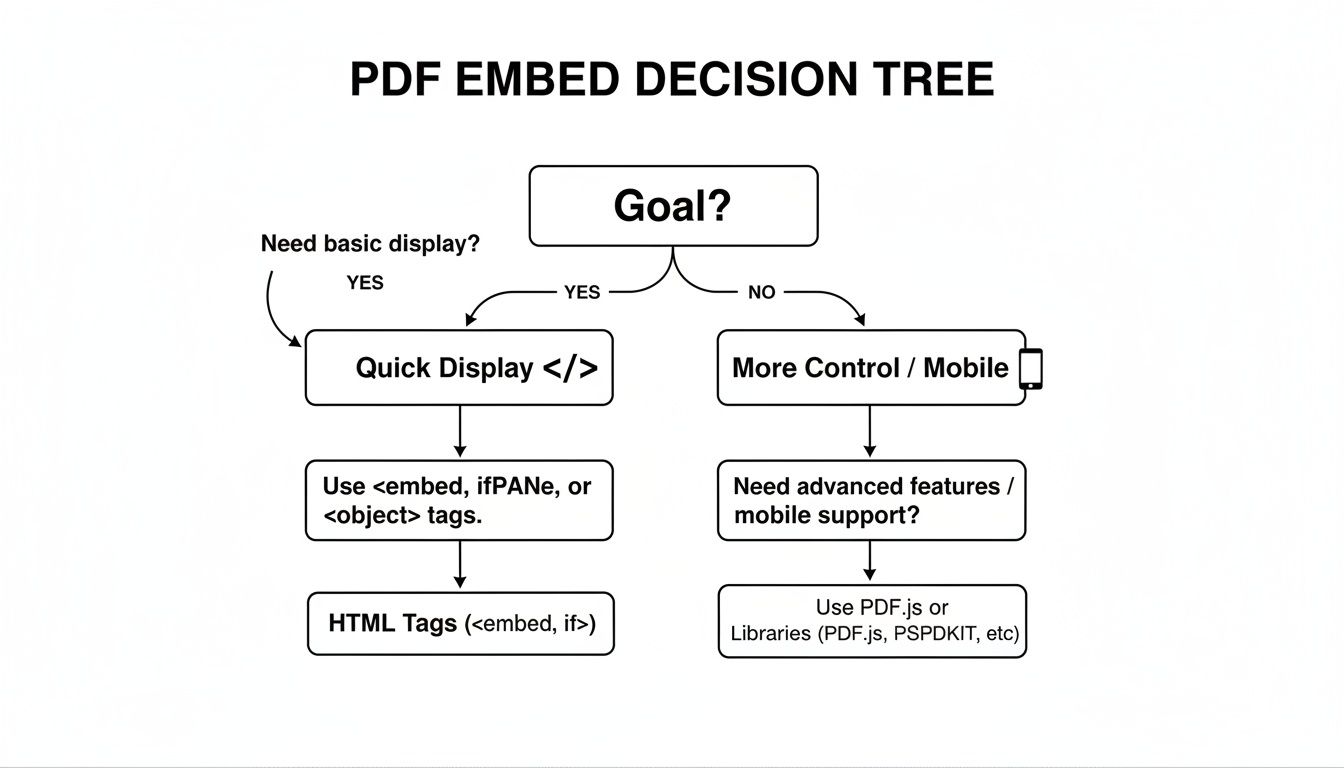
As you can see, your primary goal immediately narrows down the options, making the choice much less intimidating.
Comparison of PDF Embedding Methods
To put it all in perspective, here’s a quick-glance table comparing the most common approaches. I’ve broken it down by what usually matters most: how hard it is to implement, how much you can change the look and feel, and how it affects your page load.
Method | Ease of Use | Customization | Performance | Best For |
|---|---|---|---|---|
HTML | Very Easy | Very Low | Variable | Quick displays, internal tools, or portfolios where perfect UX isn't critical. |
PDF.js Library | Moderate | High | Good | Creating a custom, branded viewer with full control over buttons and features. |
Third-Party Viewer | Easy | Low-Medium | Good | Hassle-free embedding with reliable performance, especially for Google Drive users. |
This table shows the clear trade-offs. A simple <iframe> is incredibly fast to implement, but you’re completely at the mercy of the default browser viewer. From my experience, this is where most user complaints come from—the document looks and acts differently on Chrome, Safari, and especially on mobile phones.
For any project where the document is a core part of the user experience, taking the time to implement a more controlled solution like PDF.js is almost always worth the initial effort. It gives you a consistent, professional result on every device.
When to Choose Each Approach
Ultimately, your choice should reflect the scale and purpose of what you're building. Are you a freelancer who just needs to get a resume onto your portfolio site? An <iframe> is probably fine. Are you developing a full-blown document management system for your clients? PDF.js is the professional choice. Understanding these trade-offs is a key part of learning how to build a web application that people will actually enjoy using.
Think about it with these real-world scenarios:
Use an
<iframe>for: A restaurant menu on a local business website. It’s fast, simple, and the owner can easily update the file.Use PDF.js for: A secure client portal where users view custom-generated invoices or sensitive reports. Here, control over the interface and a consistent look are non-negotiable.
Use a Third-Party Viewer for: Embedding a public presentation from Google Slides into a blog post. It's just more convenient to use the reliable service you're already on.
Building a Custom Viewer With PDF.js
When the basic browser tools don’t give you the control you need, it's time to roll up your sleeves and build something yourself. For displaying a pdf in a web page, that solution is almost always PDF.js. This is the same open-source JavaScript library that Mozilla built to power the PDF viewer inside the Firefox browser, so you know it's robust.
By using PDF.js, you're essentially building your own mini-application for viewing documents. You get to design the entire interface to match your site's branding perfectly. Want custom buttons, unique layouts, or specific functionality? You’re in complete control.
Why Go Through the Trouble of a Custom Viewer?
The biggest win here is consistent user experience. Instead of your PDF looking one way in Chrome and another in Safari—or worse, not loading at all on mobile—a custom viewer built with PDF.js ensures it looks and behaves identically for every single user. That kind of reliability makes your app feel professional and trustworthy.
This approach also taps directly into a major industry trend. Web-based document editors now make up 58% of the PDF software market. A massive driver behind this is the demand for cross-platform access, with 71% of professionals expecting their documents to work seamlessly on any device. A custom viewer puts you in a great position to meet that expectation. For a deeper dive, check out these insights on the PDF software market.
A custom viewer transforms the document from a simple embedded file into an integral, interactive part of your application. You control the entire experience, from the loading screen to the final page turn.
Getting Started in a No-Code Environment
I know, implementing a JavaScript library can sound like a huge leap for no-code developers. But it’s surprisingly manageable, especially within a platform like Bubble.io. The process boils down to hosting some files, adding a bit of HTML to your page, and then using a plugin to run the JavaScript that brings it all to life.
Here's a quick look at the moving parts:
Host the Library Files: First, you’ll need to upload the PDF.js library files (they usually come in
buildandwebfolders) somewhere they can be accessed online. Bubble’s file manager is perfect for this, or you could use a service like Amazon S3.Add an HTML Element: On your Bubble page, you'll drop in an HTML element. Inside it, you’ll place a
<canvas>tag, which acts as the blank slate where PDF.js will "draw" the pages of your document.Run the JavaScript: The final piece is using a JavaScript plugin, like Bubble's free and incredibly useful "Toolbox" plugin, to execute the code. This script simply tells PDF.js where to find your PDF file, which you can pull dynamically right from your Bubble database.
In my own projects, the most common roadblock is getting the file paths right in the code. Once you solve that puzzle, the fun begins. You can start creating your own buttons in Bubble for "Next Page," "Previous Page," or "Zoom." Each button triggers a small JavaScript snippet that calls a function in the PDF.js API, letting you build a completely bespoke document viewer without ever having to write one from scratch.
Optimizing PDF Performance and User Experience
Getting a pdf in a web page is one thing, but making sure it doesn’t drag your entire site down is another challenge entirely. A massive, unoptimized PDF will absolutely demolish your page load times and send visitors running for the hills before your content even has a chance to appear.
The impact is staggering. An astonishing 88.5% of users will abandon a website if it loads too slowly. Think about it in terms of conversions: data shows a page loading in one second might see a conversion rate near 40%. But for a site displaying documents, a four-second load time could crater that rate to a dismal 0.67%. You can dig into more of these eye-opening website statistics from DiviFlash.com. Performance isn't a "nice-to-have"—it's everything.
Start With a Smaller File Size
Before you write a single line of code, your first and most important job is to shrink your PDF file. Nine times out of ten, the culprit behind a bloated PDF is a collection of high-resolution images.
Run your document through a good PDF compression tool. Most will let you strike a balance between image quality and file size. You don’t need print-quality resolution for a web display, so you can often be quite aggressive here. Aim for something that looks sharp on-screen but is ideally under a few megabytes. This isn't just about faster rendering; it’s about making the entire workflow smoother, much like efficiently extracting data from PDF pitch decks automatically can streamline business operations.
Improve Perceived and Actual Load Times
Even after compression, a PDF can still slow down the initial rendering of your page. That's where a couple of clever front-end techniques come into play.
Lazy Loading: This is a total game-changer. Instead of loading the PDF viewer right away, it waits until the user actually scrolls down to where the document is. This keeps your initial page load snappy because the browser isn't bogged down fetching a heavy file that isn't even visible yet.
Placeholder Thumbnails: To improve what we call "perceived performance," you can show a static image of the PDF's first page. When a user clicks on this thumbnail, the full, interactive viewer loads on demand. This gives them an immediate visual without the upfront performance hit.
I’ve found that combining a compressed PDF with lazy loading and a placeholder is the trifecta for a great user experience. The page loads instantly, and the document is ready the moment the user interacts with it.
Ensure a Responsive and Accessible Experience
Finally, speed means nothing if the document is unusable. A PDF that looks great on a 27-inch monitor can become a frustrating, un-scrollable mess on a mobile phone.
Your embedding method has to be responsive. If you’re using a simple <iframe> or <object> tag, make sure you use CSS to set its width to 100%. This small tweak allows the container to flex and fit itself to any screen size.
For accessibility, always add ARIA labels to your embed code. An attribute like aria-label="Annual Report 2023" gives essential context to people using screen readers, turning a generic embedded object into a piece of content they can actually understand. It’s a simple step that makes your site more inclusive for everyone.
Frequently Asked Questions About Embedding PDFs
Embedding a PDF seems like it should be simple, but it's one of those tasks that often throws a wrench in the works. I get asked about the same few issues all the time, especially from folks building on no-code platforms like Bubble.io.
Let's walk through the most common questions I hear and get them sorted out.
My Embedded PDF Is Not Showing Up What Did I Do Wrong
This is the big one. You’ve set up your <iframe> or embed element, but all you see is a blank box. Frustrating, I know. 99% of the time, the problem comes down to one of two things.
First, check your file's URL and its privacy settings. Is the PDF actually public? If you're storing the file in your Bubble app's private storage, a public-facing web page simply can't get to it. The browser needs permission. Make sure the file is either attached to a public data record or that its privacy rules are explicitly set to be viewable by everyone.
If that's not it, the other likely culprit is a Cross-Origin Resource Sharing (CORS) error. Pop open your browser's developer console (F12 or Cmd+Option+I on a Mac) and look for angry red text mentioning CORS. This error means your PDF is hosted on one domain (like an Amazon S3 bucket) and your website is on another. The server hosting the PDF needs to be told, "Hey, it's okay for yourwebsite.com to ask for files." Fixing one of these two permission issues almost always makes the PDF appear.
How Can I Secure a PDF So Only Specific Users Can View It
A simple HTML embed offers absolutely zero security. If someone can find the direct URL to the PDF—and it's not hard—they can access and share it, completely bypassing your website's login system.
To properly lock down a document, you have to do the security check on the server. In a no-code tool like Bubble, this means you need to set up a workflow that acts as a gatekeeper.
First, the workflow should confirm the user is logged in.
Next, it should check if that user has the right permissions (like an active subscription or a specific user role).
Only if those checks pass should the workflow actually show the PDF viewer on the page.
The most secure way to do this is to avoid a permanent, public file URL altogether. A much better approach is to have your workflow generate a temporary, expiring link that’s only valid for that specific user's session. This server-side validation is the industry standard for protecting sensitive files.
Can I Track if a User Has Viewed or Downloaded My PDF
Basic HTML tags like <iframe> are essentially black boxes. They don't report back what the user does inside them. You have no way of knowing if they read page two or clicked the download button within the browser's built-in PDF viewer.
To get that kind of tracking, you need more control. A custom implementation using a library like PDF.js is the technical solution, as it lets you wrap the viewer with your own JavaScript event listeners. You could add your own "Download" button that triggers a logging event before starting the download.
But if you're working in a no-code environment, there's a simpler, clever workaround:
Set the PDF viewer element to be hidden on page load.
Create your own custom button with a label like "View Document."
When a user clicks that button, have it trigger a workflow.
The first action in that workflow should be to create a new record in your database—a "view event"—that logs the user and the timestamp.
Then, as the final step, the workflow can reveal the PDF viewer element.
This gives you real, actionable analytics on who is engaging with your documents, something a simple embed could never provide.
Feeling stuck on a specific Bubble.io challenge or just need an expert eye on your project? Codeless Coach offers one-on-one tutoring sessions to help you build faster and smarter. Get hands-on guidance to overcome roadblocks and bring your no-code app to life. Learn more and book a session.