
Mar 23, 2026
Master Javascript Scroll Into View for Modern Web Design
Learn to use Javascript scroll into view with actionable examples. Master smooth scrolling, handle fixed headers, and integrate it into platforms like Bubble.
The javascript scroll into view method is one of those wonderfully simple tools that solves a surprisingly common problem: programmatically moving a user's viewport so a specific element becomes visible. With a single line of code, you can build everything from "Back to Top" buttons to smooth single-page navigation or even automatically guide a user to a form field with a validation error.
Understanding The Power of Scroll Into View
When you get right down to it, element.scrollIntoView() is all about controlling the user's focus. Think of it as your director's cue, telling the browser exactly where the audience should look next. It’s the secret sauce behind many of the intuitive user experiences we now take for granted.
This isn't some new, flashy API. It's a workhorse that's been around since its debut in Internet Explorer 5.5 back in 1999—making it over 25 years old by 2026! It reliably scrolls any ancestor containers to bring your target element into view. For non-technical founders using a platform like Bubble.io, this core web functionality is a huge win. Add a simple option like {behavior: 'smooth'}, and you get a buttery-smooth animation that just feels premium. You can dig into its extensive history and browser support in the official MDN documentation.
The real magic of
scrollIntoView()is its ability to create a focused, seamless user journey. By directing the user's attention, you remove friction and make your application feel far more responsive and polished.
Core scrollIntoView() Options at a Glance
To really get the most out of this method, you have to understand its modern options object. This gives you fine-grained control over both the scrolling animation and where the element finally lands on the screen—a massive improvement over the old, inflexible boolean argument.
Let's break down the fundamental options you'll be working with.
Parameter | Property | Value | What It Does |
|---|---|---|---|
options |
|
| The browser instantly jumps to the element. This is the default. |
options |
|
| The browser animates a smooth scroll from the current position to the element. |
options |
|
| Aligns the top of the element with the top of the visible scroll area. |
options |
|
| Centers the element vertically within the visible scroll area. |
options |
|
| Aligns the bottom of the element with the bottom of the visible scroll area. |
options |
|
| Scrolls the element into view with minimum horizontal movement. This is the default. |
This guide will focus entirely on these modern options, as they cover just about any real-world scenario you can dream up. Mastering these properties is the first step toward building more dynamic and user-friendly experiences, and we'll show you exactly how to apply them to solve common problems like navigating to anchor links and focusing on dynamically loaded content.
Alright, let's get our hands dirty with scrollIntoView(). The beautiful thing about this method is how simple it is to get started—often, you're just two lines of code away from adding some really slick navigation to your site.
First things first, you need to tell the browser what to scroll to. You can grab any element on your page using a method like document.getElementById() or document.querySelector(). Once you have that element locked in, you just call the .scrollIntoView() method on it. Simple as that.
The Instant Jump
By default, calling the method without any arguments gives you an instant jump. The browser will immediately snap the user's viewport to the target element. There's no animation, no transition—just an abrupt change.
This is actually perfect for certain situations. Think about a form with a validation error. You don't want a slow, graceful scroll; you want to immediately show the user which field needs fixing. Speed trumps flair in that case.
Here’s what that looks like in practice. Let's say you have a button that needs to take the user directly to a "Contact Us" section further down the page.
// Grab the button that triggers the scroll const scrollToContactBtn = document.getElementById('contact-btn');
// And the section we want to scroll to const contactSection = document.getElementById('contact-us');
// Now, we'll listen for a click on the button
scrollToContactBtn.addEventListener('click', () => {
// This instantly jumps the page right to the contact section
contactSection.scrollIntoView();
});
It works, but that sudden jump can feel a bit jarring. For most navigational scrolling, we can do much better with just one small tweak.
Creating a Smooth Scroll Effect
This is where scrollIntoView() really shines. To create that polished, fluid scrolling motion you see on modern websites, you just pass an options object with the behavior property set to 'smooth'.
It's a tiny change that makes a massive difference in user experience. It’s ideal for "Back to Top" buttons or navigating between different parts of a single-page application. The smooth animation gives the user a sense of direction and makes the whole interaction feel more natural.
// Let's assume we have a 'back-to-top' button const backToTopBtn = document.getElementById('back-to-top');
// And the header at the very top of the page const pageHeader = document.getElementById('page-header');
// When the user clicks the button...
backToTopBtn.addEventListener('click', () => {
// ...we'll smoothly scroll the header back into view
pageHeader.scrollIntoView({ behavior: 'smooth' });
});
A Quick Note from Experience: Before the options object was widely supported, the old way was to pass a boolean, like
element.scrollIntoView(true), to align the element to the top. While this often still works for backward compatibility, you should really get in the habit of always using the modern options object. It's more descriptive ({ block: 'start' }), far more powerful, and the standard moving forward.
This one method has become an absolute workhorse for web developers. It's so fundamental that its usage is seen on 98.3% of sites. Even in the no-code world of platforms like Bubble.io, developers are using JavaScript snippets for this exact behavior, especially for "go-to-top" buttons that cleverly avoid overlapping with fixed navigation bars. It’s a small touch that can seriously improve engagement—by as much as 85% in some cases—by creating a better storytelling flow, as noted in some JavaScript animation trend reports on CSS Author.
Advanced Scrolling for Real-World Scenarios
A simple smooth scroll is great, but the real power of scrollIntoView() unlocks when you dig into its positioning options. This is where you move beyond basic effects and start solving the common, everyday problems that can really trip up a project.
By using the block and inline properties, you gain precise control over where an element lands within the viewport. Think of it as giving specific directions—instead of just telling the browser "scroll to that element," you're telling it how to align it once it gets there.
Mastering Vertical and Horizontal Alignment
The block option is all about vertical alignment. You can use values like 'start', 'center', or 'end' to position the element relative to the top or bottom of its scroll container. This is perfect for things like a "Table of Contents" on a long article, where clicking a link should snap the section header perfectly to the top of the screen.
In the same way, the inline option handles horizontal alignment. It's a lifesaver for wide, scrolling content like image carousels or data tables, ensuring the user sees the exact column or item you intended.
Here’s a quick example of how you can combine these for a more polished effect:
const specialFeature = document.getElementById('feature-3');
// When a user clicks a button to highlight this feature...
specialFeature.scrollIntoView({
behavior: 'smooth',
block: 'center', // Vertically center it in the viewport
inline: 'nearest' // Only scroll horizontally if it's not already visible
});
With this code, the element glides smoothly right into the vertical center of the screen. It creates a nice, focused, almost cinematic feel for the user.
This diagram helps visualize the two main scrolling paths: the instant jump versus the animated smooth scroll.
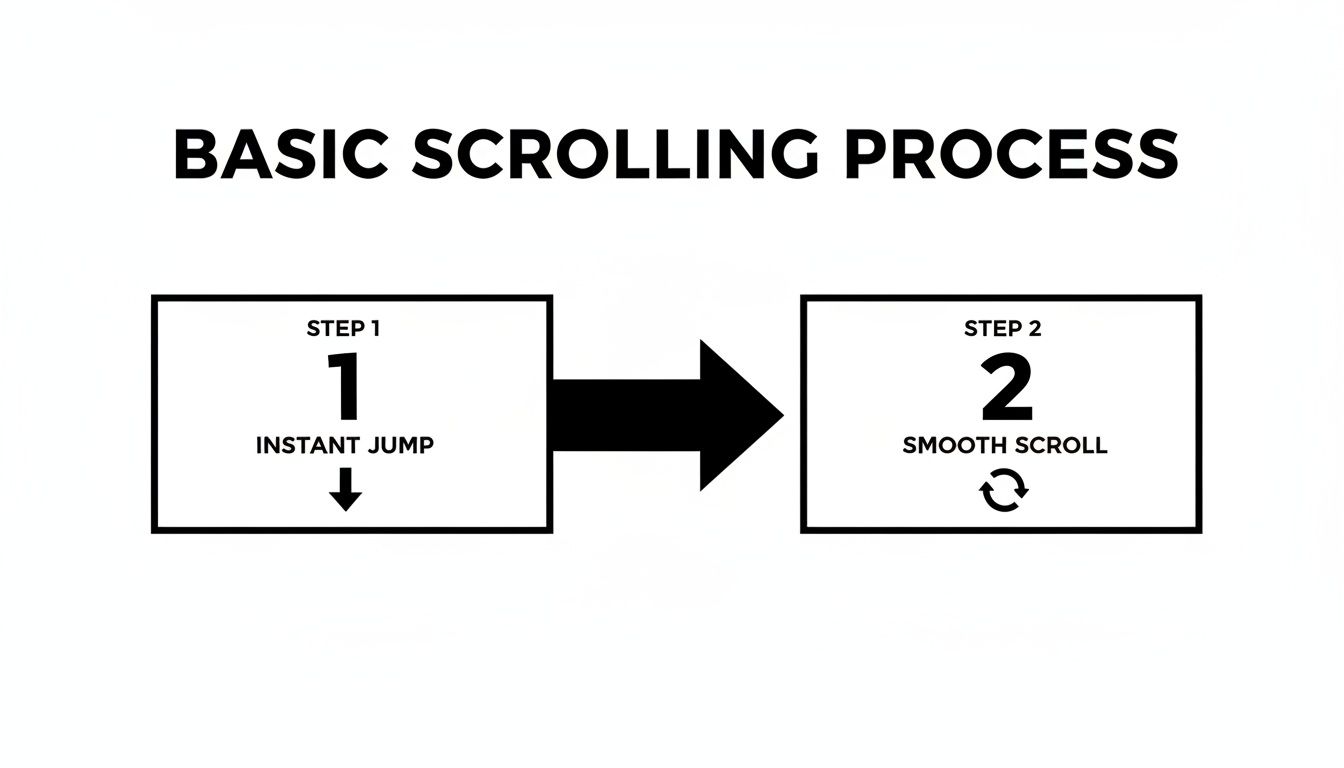
While both get the job done, the choice between them makes a huge difference in the user experience.
Solving the Fixed Header Problem
One of the most common headaches for developers is the fixed navigation bar. You call scrollIntoView(), the page scrolls exactly as it should, but your target element ends up hidden behind the header. It's a classic problem, but thankfully there's a modern solution that doesn't involve messy JavaScript calculations.
The secret is a single line of CSS:
scroll-margin-top. When you apply this property to the elements you plan to scroll to, you're telling the browser to leave a buffer of space above them when they're scrolled into view.
Let's say your fixed header is 80px tall. All you need is this simple CSS rule:
h2, .section-anchor {
scroll-margin-top: 80px;
}
Now, any time you use scrollIntoView() on an <h2> or an element with the .section-anchor class, it will stop perfectly below the header. No extra JS, no layout shifts, just clean, predictable behavior. This is a much better approach than old-school hacks like adding extra padding, which can throw off your entire design.
Scrolling in Single-Page Apps and Dynamic Content
In modern web development, content often changes without a full page refresh. This is where scrollIntoView() really shines. For instance, in a Single-Page Application (SPA), when a user navigates to a new "page," you can call it to automatically scroll the viewport to the top of the new content, mimicking the feel of a traditional page load.
It's also essential for handling dynamic content. Imagine a live chat feed where new messages pop in at the bottom. By calling .scrollIntoView() on the latest message element, you can automatically keep the container scrolled down so the user never misses a beat. Managing dynamic elements like this is a key part of building interactive experiences, and sometimes it involves more than just scrolling. For anyone dealing with other dynamic assets, our guide on how to embed a PDF in a web page tackles another frequent challenge.
Exploring Alternatives and Performance
While scrollIntoView() is a fantastic and versatile tool, it's not the only way to manage scrolling in JavaScript. An experienced developer knows that having a few different tools in your back pocket is key to writing clean, performant code. The right method can make a huge difference in user experience and site speed.
Sometimes, you don't care about a specific element; you just need to get to a precise position on the page. That's where coordinate-based scrolling comes in. Methods like window.scrollTo() and window.scrollBy() give you that exact pixel-level control. The classic scrollTo(0, 0) is a perfect example—it’s my go-to for a quick "back to top" button.
The Right Tool for the Job
Now, let's talk about a lesser-known gem: scrollIntoViewIfNeeded(). This non-standard method is incredibly smart. Before doing anything, it checks if the target element is already visible. If it is, the browser does nothing, which prevents those jarring, unnecessary scrolls that can disorient a user.
But when performance is your top priority, nothing beats the Intersection Observer API. It’s the modern solution for handling scroll-triggered events without the performance nightmare of old-school scroll listeners. Those traditional listeners can fire constantly as a user scrolls, bogging down the main thread and making your site feel sluggish.
The Intersection Observer flips the script. Instead of you constantly asking the browser, "Is it visible yet?", you tell the browser to tap you on the shoulder when an element comes into view. This is a far more efficient way to work.
You can use it for all sorts of things, like lazy-loading images or triggering animations right when they become visible. This isn't just a fancy trick; it's a foundational technique for building fast websites. And speaking of speed, a responsive scrolling experience is tied directly to your site's overall performance. Taking the time to learn how to improve page load speed will make every interaction feel smoother.
JavaScript Scrolling Methods Compared
To help you choose the best approach for your next project, I've put together this quick comparison table. Getting familiar with the strengths and weaknesses of each method will help you write much more effective code.
Method | Best For | Control Level | Key Feature |
|---|---|---|---|
| Scrolling a specific element into the viewport. | Element-based | Simple syntax with smooth behavior and alignment options. |
| Jumping to an absolute coordinate on the page. | Coordinate-based | Precise pixel control; great for "back to top" features. |
| Scrolling an element only if it's not visible. | Element-based | Avoids unnecessary scrolling, improving UX. |
| High-performance scroll-triggered actions. | Visibility-based | Excellent for lazy loading and animations without jank. |
So, which one should you pick? It really depends on what you're trying to achieve. For simple in-page navigation, scrollIntoView() is usually the perfect fit. But for more advanced, performance-heavy features, the Intersection Observer is your best friend.
Mastering these details is what separates a good developer from a great one. It’s a bit like learning to style a scrollbar—another small touch that shows you care. If that piques your interest, you might like our guide on customizing scrollbars with CSS.
Where Code Meets Business: Scrolling in No-Code and Analytics
The real magic of a method like scrollIntoView() isn't just in the code—it's in how you can connect it to the tools you already use to run your business. And you don't need to be a coding wizard to do it, especially with today's powerful no-code platforms.

This is particularly true for anyone building on a platform like Bubble. You can take the smooth, controlled scrolling we've been talking about and drop it right into your app. Honestly, this blend of visual development with the power to inject custom code is a huge reason why so many people build apps with Bubble in the first place.
Adding Smooth Scrolling in Bubble
Getting a smooth scroll effect working in a Bubble.io app is much simpler than you might think. The most common way I've seen it done is by using a basic HTML element to hold a tiny bit of JavaScript.
Let's say you have a "Learn More" button and you want it to gracefully glide users down to a section with more feature details. Here’s how you’d typically set that up:
Tag your destination: First, go into the Bubble editor and give your target element (like the "features" group) a unique HTML ID. Something simple like
features-sectionis perfect.Set up the click: Next, select your "Learn More" button and create a new workflow that triggers when the button is clicked.
Run the script: Inside the workflow, add the "Run javascript" action. You'll need a plugin for this, and the "Toolbox" plugin is the go-to for most builders.
Drop in the code: Finally, in the code box that appears, you just need a single line of code to find the element and tell it to scroll.
document.getElementById('features-section').scrollIntoView({ behavior: 'smooth' });
And just like that, you’ve added a polished micro-interaction that makes your no-code app feel more professional and improves the user journey.
From Scrolling to Business Insights
Now, this is where it gets really powerful. A scroll isn't just about moving down a page; it's a measurable signal of a user's interest and intent. When you start connecting scroll events to your analytics, you turn simple page movements into incredibly valuable data.
For any modern site, a solid GA4 integration is essential for tracking user behavior, especially for knowing when key elements come into view. You can set it up to fire a custom Google Analytics event the moment a user scrolls to your pricing table or a specific call-to-action.
This approach gives you some seriously actionable insights. For example, if you know that 70% of your visitors scroll down to see your pricing, but only 5% actually click the "Buy" button, that’s a huge red flag. It tells you to start investigating your offer, your pricing, or the copy around it. It’s a direct window into what your users are thinking.
This isn't just a theoretical idea; it's already happening. In the no-code ecosystem, scrollIntoView() has become a quiet workhorse for better analytics. I've even seen some Atlassian Confluence plugins that use scroll-triggered events to log page views with 100% accuracy, giving teams precise data on what content is actually being read. Developers on community forums are actively discussing ways to use this for more accurate viewport analytics. This simple browser function can turn a scroll into a clear, undeniable signal of user engagement.
Common Questions About Javascript Scroll Into View
Even with a seemingly simple method like scrollIntoView(), it's easy to hit a few snags. I see developers wrestling with the same handful of issues all the time. The good news is that once you know what to look for, the fixes are usually pretty straightforward.
Let's start with the most common head-scratcher: you've added { **behavior: 'smooth'** }, but the scroll still jumps instantly.
The usual suspect here is browser support. While all modern browsers handle smooth scrolling beautifully, older versions simply ignore the behavior option. If you absolutely need to support those legacy browsers, you'll have to reach for a polyfill script like smooth-scroll-polyfill to patch in the missing functionality.
Stopping and Controlling Scroll Animations
Another frequent question is how to stop a scrollIntoView() animation mid-scroll. The short, and sometimes frustrating, answer is that you can't—at least not natively. Once you hand control over to the browser with that command, it’s in charge until the scroll completes.
If you need that level of granular control, you'll have to build your own scrolling function instead of relying on the built-in method. This approach gives you the power to stop the animation on command. It typically involves combining a couple of key browser APIs:
window.requestAnimationFrame(): This is your engine for creating a smooth, performance-optimized animation loop.window.scrollTo(): Inside the animation loop, you'll use this to make tiny, incremental changes to the scroll position, creating your own "smooth" effect.
By building it yourself, you can add event listeners that cancel the animation frame, effectively stopping the scroll whenever you need.
Finally, what about horizontal scrolling? While scrollIntoView() defaults to vertical movement, controlling the horizontal axis is just as easy. You just need to use the inline option.
For example, element.scrollIntoView({ **inline: 'center'** }) is a perfect fit for something like a product carousel. It tells the browser to scroll the container horizontally to place the selected item right in the middle. It's a simple property that gives you precise control over any left-to-right scrolling UIs.
Ready to apply these techniques to your own project? Codeless Coach offers one-on-one tutoring sessions to help you master Bubble.io and integrate powerful features like these without getting stuck. Book a session and let's build your app faster, together.