
Mar 18, 2026
Mastering CSS for Scrollbar a Modern Web Design Guide
Learn how to use modern CSS for scrollbar styling. This guide provides cross-browser code, real-world examples, and expert tips to elevate your web design.
Let’s be honest, the default browser scrollbar isn’t exactly a design masterpiece. It’s functional, sure, but it can stick out like a sore thumb in a carefully crafted interface. Customizing the scrollbar is a fantastic way to elevate your design, but it’s a detail that comes with some important considerations.
We're not just talking about aesthetics. A poorly designed scrollbar can wreck your user experience, making your site frustrating to navigate. The goal is to create something that feels integrated and intuitive, not a flashy distraction.

Beyond The Look: UX And Accessibility
Before you jump into the code, let's talk about the user. Styling a scrollbar is a balancing act between form and function. Get it wrong, and you could make your site less accessible.
Here are a few things I’ve learned to keep in mind:
Contrast is Key: The scrollbar thumb needs to be clearly visible against the track. If the contrast is too low, users with visual impairments—or frankly, anyone using a dim screen—will struggle to see it. Aim for a WCAG AA contrast ratio of at least 3:1 for UI components.
Don't Hide It: Auto-hiding scrollbars can be sleek, but they’re a nightmare for discoverability. A user might not even realize there's more content to scroll to. If you must hide it, make sure it appears instantly on hover or interaction.
Think About Size: Making a scrollbar super thin looks modern, but it can be incredibly difficult to click and drag, especially for users with motor impairments or those on touch-unfriendly devices. A width of at least 8-10 pixels is a good starting point.
Avoid Over-Styling: A scrollbar that mimics other interactive elements, like a button, can be confusing. It should look like what it is: a tool for scrolling. This is where subtle animations or a sound on hover could add a nice touch without creating confusion.
Ultimately, a custom scrollbar should enhance the experience, not hinder it. Your design should always serve the user first. When in doubt, lean on the side of usability.
For a long time, styling scrollbars felt like a bit of a dark art, relying on vendor-prefixed properties that worked differently from browser to browser. Thankfully, the web standards are catching up, and we now have two main ways to tackle this: the modern, standards-based approach and the tried-and-true, WebKit-specific method.
Let's break down both, so you can choose the right technique for your project.
The Modern, Standards-Based Approach
The official W3C specification gives us two new properties: scrollbar-width and scrollbar-color. This is the future-proof way to handle basic scrollbar styling, and it's primarily supported by Firefox.
The beauty of this method is its simplicity. You don't need to target individual parts of the scrollbar. Instead, you just define a general thickness and a color scheme.
Take a look at how these properties work.
Modern Scrollbar Properties at a Glance
Property | Accepted Values | What It Does |
|---|---|---|
|
| Sets the thickness of the scrollbar. |
|
| Sets the color of the thumb and the track. The first color value applies to the thumb (the draggable handle), and the second applies to the track (the background). |
Here's a quick example of how you'd use these to create a dark-themed scrollbar:
/* For Firefox */
{
scrollbar-width: thin;
scrollbar-color: #888 #f1f1f1;
}
This code tells the browser to make the scrollbar thin, with a dark gray thumb (#888) and a light gray track (#f1f1f1). It’s clean, easy, and follows web standards. The main drawback? Browser support is still catching up.
The Classic, WebKit-Powered Method
For years, the go-to solution has been using the ::-webkit-scrollbar pseudo-element. This method offers much more granular control, allowing you to style every individual piece of the scrollbar.
This approach is supported by all WebKit and Blink-based browsers, which includes Chrome, Safari, Edge, and Opera. According to CanIUse data on CSS scrollbars, this covers a huge majority of web users. Because of its wide support and detailed control, it's still the most common method you'll see in the wild.
Let's look at the different parts you can style:
::-webkit-scrollbar: The scrollbar as a whole. You can set the width here.::-webkit-scrollbar-track: The background or "track" the scrollbar thumb moves along.::-webkit-scrollbar-thumb: The draggable handle itself. This is the part users interact with.::-webkit-scrollbar-button: The directional buttons (up/down arrows).::-webkit-scrollbar-corner: The corner where horizontal and vertical scrollbars meet.
Here’s a practical example that styles the track and the thumb, including a hover effect.
/* For WebKit Browsers (Chrome, Safari, Edge) */
::-webkit-scrollbar {
width: 12px;
}
::-webkit-scrollbar-track {
background: #f1f1f1;
}
::-webkit-scrollbar-thumb {
background: #888;
}
::-webkit-scrollbar-thumb:hover {
background: #555;
}
In this snippet, we've set a 12px width, given the track a light gray background, and made the thumb a darker gray that gets even darker on hover. It’s a simple but effective way to match the scrollbar to your site's design.
Combining Both for Maximum Compatibility
So, which one should you use? The answer is both!
You can provide a great experience for the majority of users with the -webkit prefixes while also supporting Firefox with the new standard properties. A great way to do this is with a @supports feature query.
This tells the browser: "If you understand the standard scrollbar-color property, apply these styles." WebKit browsers will ignore this block and use the ::-webkit styles, while Firefox will apply them.
@supports (scrollbar-color: #555 #f1f1f1) {
{
scrollbar-color: #555 #f1f1f1;
scrollbar-width: thin;
}
}
By combining these techniques, you get broad browser coverage without leaving anyone with a jarring, out-of-place default scrollbar. Now, let's get creative with some ready-to-use examples.
3 Custom Scrollbar Examples to Get You Started
Ready to try it yourself? Here are three distinct styles you can adapt for your own projects. Each example uses the ::-webkit- pseudo-elements, so they'll work right away in Chrome, Safari, and Edge.
A Simple and Subtle Scrollbar
Sometimes, you just want something clean and unobtrusive. This style is perfect when you want to replace the default browser scrollbar without drawing too much attention. It’s a minimalist approach that blends in nicely.
/* Applies to a container with id="style-1" */
#style-1::-webkit-scrollbar-track {
-webkit-box-shadow: inset 0 0 6px rgba(0,0,0,0.3);
background-color: #F5F5F5;
}
#style-1::-webkit-scrollbar {
width: 6px;
background-color: #F5F5F5;
}
#style-1::-webkit-scrollbar-thumb {
background-color: #000000;
}
Colorful Rainbow Scrollbar
If subtle isn't your style, why not add a splash of color? This example uses a linear gradient on the scrollbar thumb to create a vibrant rainbow effect. It’s a fun way to add personality to a design.
Feel free to swap out the colors in the background-image property to match your own brand palette.
/* Applies to a container with id="style-2" */
#style-2::-webkit-scrollbar-track {
-webkit-box-shadow: inset 0 0 6px rgba(0,0,0,0.3);
border-radius: 10px;
background-color: #F5F5F5;
}
#style-2::-webkit-scrollbar {
width: 12px;
background-color: #F5F5F5;
}
#style-2::-webkit-scrollbar-thumb {
border-radius: 10px;
-webkit-box-shadow: inset 0 0 6px rgba(0,0,0,.3);
background-image: -webkit-gradient(linear, left bottom, left top, color-stop(0.44, rgb(122,153,217)), color-stop(0.72, rgb(73,125,189)), color-stop(0.86, rgb(28,58,148)));
}
Modern Inset Scrollbar
This last example creates an "inset" look, where the scrollbar appears to sit inside its container. By applying a simple inner box-shadow to the track, you can achieve a more refined and integrated feel.
It's a small detail, but this technique can make the entire element feel more cohesive and polished.
/* Applies to a container with id="style-3" */
#style-3::-webkit-scrollbar-track {
-webkit-box-shadow: inset 0 0 6px rgba(0,0,0,0.3);
background-color: #F5F5F5;
}
#style-3::-webkit-scrollbar {
width: 6px;
background-color: #F5F5F5;
}
#style-3::-webkit-scrollbar-thumb {
background-color: #000000;
}
With just a few lines of CSS, you can move beyond the clunky browser defaults and create scrollbars that truly fit your design. Just remember to consider accessibility and test across different browsers to ensure a smooth experience for everyone.
Here are a few ways we could frame the title for this guide. Each one targets a slightly different angle, from a broad overview to a more specific, technical focus.
Thinking about what a developer might actually search for, we could go with something direct and practical:
How to Create Cross-Browser Scrollbars
A Developer's Guide to Customizing Browser Scrollbars
How to Hide Scrollbars in CSS: A Cross-Browser Approach
Or, we could aim for a more comprehensive, "ultimate guide" feel. These titles promise a deep dive into the topic, covering everything from the basics to advanced performance tips.
The Ultimate Guide to Styling Scrollbars in Web Browsers
A Modern Guide to Cross-Browser Compatible Scrollbars
The Ultimate CSS Guide to Performant Custom Scrollbars
For years, styling browser scrollbars was a bit of a wild west. Each browser had its own way of doing things, and getting a consistent look felt like a constant battle. Thankfully, things have gotten much better, but there are still two main paths to follow: the modern W3C standard and the older, but still necessary, ::-webkit pseudo-elements.
Let’s dive into how you can create beautiful, custom scrollbars that work across the board.
Understanding the Scrollbar Parts
Before we start writing CSS, it’s crucial to know what you’re actually styling. Think of a scrollbar as being made of two main components:
The Track: This is the background of the scrollbar, the channel that the thumb moves along.
The Thumb: This is the draggable handle that you click and move to scroll through the content.
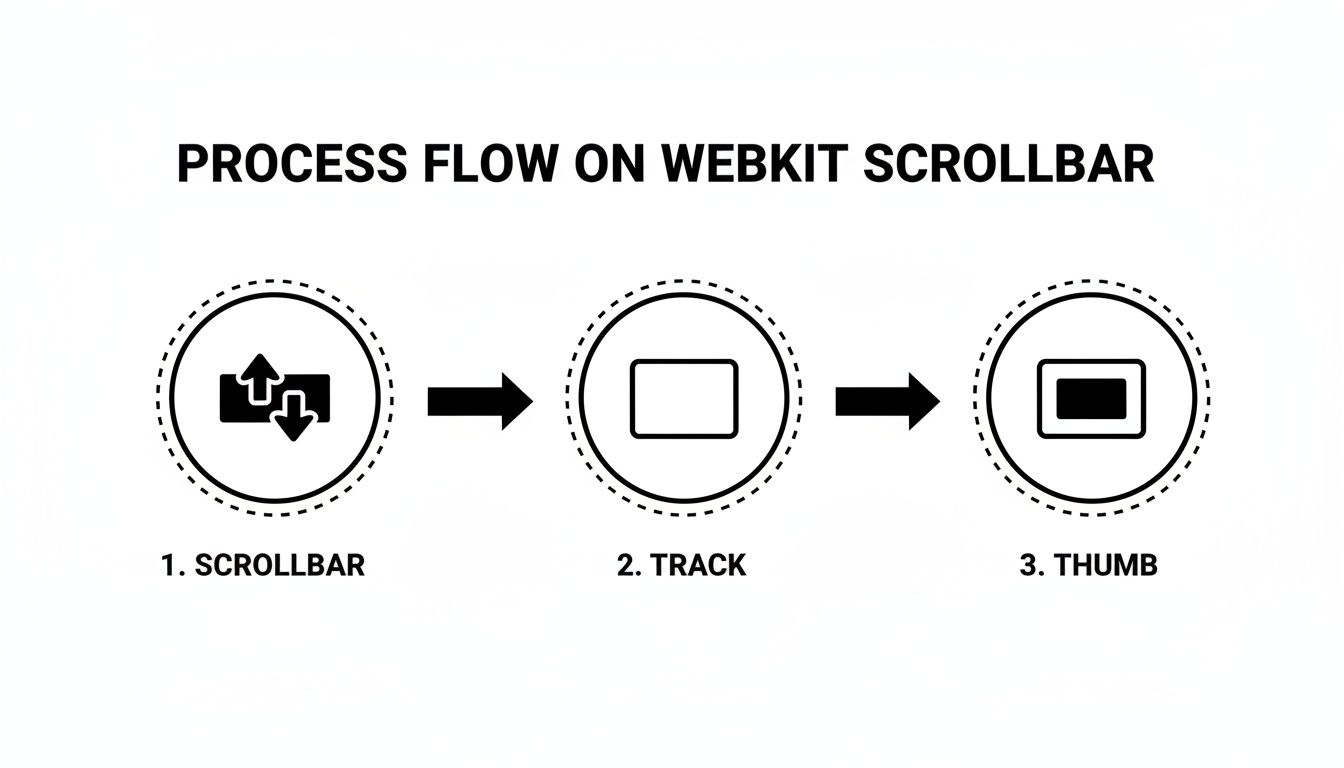
The modern CSS standard keeps things simple with just these two parts. The older WebKit-based approach, however, has more pseudo-elements you can target, like the scrollbar corner or buttons, but track and thumb are the ones you'll work with 99% of the time.
The Modern Approach: scrollbar-width and scrollbar-color
The CSS Scrollbars Module Level 1 introduced two simple properties that are now the standard way to go. This method is supported by Firefox and, more recently, by Chrome and other Chromium-browsers. It's incredibly straightforward.
You can set the width with scrollbar-width, which accepts two values:
auto: The default browser scrollbar.thin: A thinner version provided by the browser.none: Hides the scrollbar completely (but the content is still scrollable!).
Then, you can style the colors using scrollbar-color. This property takes two color values: the first is for the thumb, and the second is for the track.
Here’s a quick example:
/* For Firefox and modern browsers /
body {
scrollbar-width: thin;
scrollbar-color: #888 #f1f1f1; / thumb and track color */ }
This simple snippet gives you a thin, custom-colored scrollbar in compatible browsers. It's clean, efficient, and my first choice whenever a project allows for it. The main drawback is the lack of control over things like border-radius on the thumb—it's purely for color and width.
The WebKit Method: For Chrome, Safari, and Edge
For more detailed control, and to support a wider range of browsers (especially older versions), you'll need to use the vendor-prefixed ::-webkit-scrollbar pseudo-elements. This approach has been the go-to for years and gives you much more granular control over the scrollbar's appearance. It's almost like styling any other div on your page.
Let’s break down the key pseudo-elements:
::-webkit-scrollbar: Defines the overall scrollbar container. You can set its width or height here.::-webkit-scrollbar-track: Styles the background track.::-webkit-scrollbar-thumb: Styles the draggable thumb itself. You can add gradients, border-radius, and more.
Here’s how you’d use them to create a custom scrollbar:
/* For WebKit browsers like Chrome, Safari, and Edge */
::-webkit-scrollbar {
width: 10px;
}
::-webkit-scrollbar-track {
background: #f1f1f1;
}
::-webkit-scrollbar-thumb {
background: #888;
border-radius: 5px;
}
::-webkit-scrollbar-thumb:hover {
background: #555;
}
This code creates a 10px wide scrollbar with a light gray track and a darker, rounded thumb that gets even darker on hover. This method is perfect when you need a specific aesthetic that scrollbar-color can't provide, like rounded corners.
Putting It All Together: A Cross-Browser Solution
So, how do you get the best of both worlds? You combine them! The browser will simply ignore the properties it doesn't understand. This lets you provide a fallback.
Start with the modern properties for browsers that support them, and then add the ::-webkit rules for the rest.
/* A complete, cross-browser solution /
body {
/ Modern browsers */
scrollbar-width: thin;
scrollbar-color: #555 #f1f1f1;
}
/* For WebKit-based browsers */
body::-webkit-scrollbar {
width: 10px;
}
body::-webkit-scrollbar-track {
background: #f1f1f1;
}
body::-webkit-scrollbar-thumb {
background-color: #555;
border-radius: 6px;
border: 2px solid #f1f1f1; /* Creates padding around the thumb */
}
By defining both, you ensure a custom scrollbar experience for the vast majority of your users. Firefox will use scrollbar-color, while Chrome, Safari, and Edge will use the ::-webkit properties.
A Note on Accessibility: Always ensure your scrollbar has enough contrast. A thumb that blends into the track can be nearly invisible for users with low vision. Tools like the WebAIM Contrast Checker can be a lifesaver here. Making UI elements like a pop-up button accessible is just as important as styling them well.
For a deeper visual guide on how these properties come together, check out this excellent video tutorial:
Ultimately, styling scrollbars is a small but impactful way to polish your website's design. It shows attention to detail and helps create a more cohesive user experience. Just remember to test across different browsers to ensure everything looks and works as you expect.
When you're trying to get every last detail of your design just right, the browser's default scrollbar can really stick out like a sore thumb. For years, developers have been looking for ways to tame it, and one of the most powerful methods involves a set of special, vendor-prefixed properties from WebKit.
While the official CSS standards for scrollbars have been slowly making their way through the W3C—like the scrollbar-color and scrollbar-width properties—they don't offer the deep, granular control many of us are after. That's where WebKit's pseudo-elements come into play.
Think of these pseudo-elements as special hooks that let you style the individual pieces of a browser's UI that are normally off-limits. They aren't part of the official CSS standard, but they've been supported in WebKit-based browsers (like Chrome, Safari, and Edge) for so long that they've become a go-to solution for detailed scrollbar styling.
Key WebKit Pseudo-Elements for Scrollbars
You can target any scrollable element, like a <div> with overflow: scroll, and apply these styles. A few of the most useful ones you'll want to know are:
::-webkit-scrollbar: This targets the entire scrollbar and is where you'll set itswidthorheight.::-webkit-scrollbar-track: This is the background of the scrollbar, the "path" that the handle moves along. You can change its color or give it a border.::-webkit-scrollbar-thumb: This is the draggable handle itself. It's the part you'll style most often, changing its color, adding aborder-radiusfor a rounded look, and even giving it aborder.
Putting It Into Practice
Let's say you have a dark-themed element and want the scrollbar to match. Instead of the stark default, you can create something much more subtle and integrated.
Here’s a quick example. If you have an element with a class of .custom-scroller, you could apply this CSS:
/* First, let's define the scrollbar's width */
.custom-scroller::-webkit-scrollbar {
width: 12px;
}
/* This is the scrollbar 'track' /
.custom-scroller::-webkit-scrollbar-track {
background: #2c2c2c; / A dark grey track */
border-radius: 10px;
}
/* And this is the 'thumb' or handle /
.custom-scroller::-webkit-scrollbar-thumb {
background-color: #555; / A slightly lighter grey for the thumb /
border-radius: 10px;
border: 2px solid #2c2c2c; / Creates a nice padding effect */ }
With just a few lines of code, you've completely transformed the scrollbar. The border-radius gives it a modern, pill-shaped look, and the colors make it feel like a natural part of your design, not an afterthought. This is especially important when you design a mobile application, where every pixel counts.

The Big Caveat: Browser Support
Here's the catch you have to remember: these -webkit- properties are not supported in Firefox. If you only use this method, Firefox users will just see the default browser scrollbar.
That’s why it’s best to use this technique as a progressive enhancement. You should always pair it with the standard CSS properties like scrollbar-color and scrollbar-width to provide a fallback for Firefox. This way, you get the best of both worlds—highly detailed styling in WebKit browsers and a solid, branded (if simpler) experience everywhere else.
And no matter how you style it, always keep usability in mind. Ensure the thumb has enough contrast against the track to be easily visible, following general accessibility guidelines for websites so that your custom design doesn't make your content harder to use.
Sometimes you just need a solution that works, right now. If you're looking for a quick, grab-and-go snippet to style your scrollbars across most major browsers, this is the place to start.
This approach primarily targets WebKit-based browsers like Google Chrome, Safari, and modern versions of Microsoft Edge. We'll get to a fallback for Firefox in just a bit.
The Go-To Snippet for WebKit Scrollbars
Let's dive right into a practical example. This CSS targets the special pseudo-elements that WebKit provides for scrollbar styling. Simply add this to your stylesheet to get a clean, custom-styled scrollbar.
/* First, we create a pseudo-element for the scrollbar itself. /
::-webkit-scrollbar {
width: 10px; / The width of the vertical scrollbar. / height: 10px; / The height of the horizontal scrollbar. */ }
/* This is the part of the scrollbar that the user drags. /
::-webkit-scrollbar-thumb {
background: darkgrey;
border-radius: 5px; / Optional: rounds the corners of the thumb. */ }
/* And this is the track, the area the thumb moves along. */
::-webkit-scrollbar-track {
background: lightgrey;
}
This code is a fantastic starting point. I've found that a width of around 10px is a pretty sweet spot—it's noticeable without being clunky. You can apply these styles globally or target a specific div or container that has its overflow property set to scroll.
Real-World Tip: You'll need
overflow: scroll;oroverflow: auto;on an element for a scrollbar to appear. This is crucial for dynamic containers where content might or might not cause an overflow.
Customizing Your Scrollbar Colors and Look
The real fun begins when you start playing with the colors to match your site's branding. The two most important pseudo-elements you'll be styling are:
::-webkit-scrollbar-thumb: This is the movable handle of the scrollbar. You can change itsbackground-color, add aborder, or even apply aborder-radiusto give it a softer, pill-like shape.::-webkit-scrollbar-track: This is the groove or background the thumb slides along. Setting itsbackgroundcolor provides contrast and completes the look.
Feel free to get creative here. You can use subtle shades for a minimalist design or bold, contrasting colors to make the scrollbar a statement piece. Some of the most innovative designs I've seen use their scrollbars to mimic an in-app "mini-map" of the page content, a concept popularized by code editors like Sublime Text.
With this little bit of CSS, you've already conquered scrollbar styling for the majority of browsers. Next up, we'll tackle the one major holdout: Firefox.